Most advice about buying a till for a small business is written as if you were buying for a chain, just with smaller numbers. It is not the same problem. A 40-seat bistro with three staff and one card reader has a completely different failure mode from a twelve-site group, and the thing that will hurt you is almost never the feature list. It is the contract, the hardware you were told you needed, and the per-device fee that looked like nothing in the demo. Picking a restaurant POS system at this size is mostly an exercise in not overbuying.
This guide is about that. What genuinely matters when you are small, what you can leave switched off for two years, and how to avoid the two traps that catch nearly every independent operator. I will use Tableview's own numbers as the worked example, because they are published and I can be specific rather than vague: Tableview pricing plans start at $69 a month per location with no setup fee. Where the honest answer is "this depends on your card processor, and nobody publishes that", I will say so.
What "small business" actually means to a POS vendor
Vendors use the phrase to mean "cheap plan". It is more useful to think about which of four shapes you are, because they want different things and the mismatch is where money gets wasted.
The solo counter. One person, one till, no table service. A coffee cart, a market stall, a bakery counter at 7am. Speed of a single transaction is everything and you need almost no reporting. You are the entire staff rota.
The small table-service venue. Twenty to sixty covers, two to five staff, a kitchen with one or two people in it. You need tables, splitting bills, and orders that reach the kitchen without somebody walking. This is where most independents sit.
The mobile or seasonal operator. A food truck, an events bar, a summer-only kiosk. Your constraint is connectivity and power, not features, and you may want to stop paying for four months of the year.
The small multi-channel shop. A deli doing counter sales plus pickup orders plus a couple of delivery platforms. One till, four sources of orders, and the real problem is that they arrive on different screens.
Work out which one you are before you read a single feature comparison. The solo counter and the small table-service venue should genuinely buy different things, and if you are not sure whether you need a full system at all, EPOS versus POS covers where a plain card terminal stops being enough.
The two numbers that decide what you pay
Everything else on a quote is noise next to these.
How the software is priced. Per location, per register, or per device. This sounds like an accounting detail and it is the single biggest driver of what you will actually pay over five years. Per-location pricing means adding a second till costs nothing. Per-register pricing means every screen you add has a monthly cost attached to it forever, and screen count only ever goes up.
Your card processing rate. For most small venues this is larger than the software fee by a wide margin. A venue turning over $30,000 a month at 1.8 percent is paying $540 a month to process cards. The same venue's POS software might be $69. If you spend three weeks comparing software and five minutes on processing, you have optimised the small number. Our breakdown of payment processing fees is worth more of your time than any feature grid.
Tableview charges per location: $69 a month on Starter, which includes two registers, and $49 a month for each register after that. Pro is $189 a month per location with unlimited registers. Processing runs through third-party processors and the rate varies by country, which is why you will not find it published anywhere, including here.
Why hardware is the trap
Here is the pattern that has repeated for fifteen years. A vendor quotes you a low monthly software fee and a hardware bundle: a terminal, a stand, a cash drawer, a printer, a card reader. Two or three thousand dollars, or financed at a comfortable-looking monthly rate over 36 months.
The terminal in that bundle is usually an Android tablet in a plastic shell. It is not faster than the iPad on your desk. What it is, is tied to that vendor, which means the day you want to leave, the hardware leaves too. That is the point of it.
Financing makes it worse in a specific way that is easy to miss: if the screens are on a 36-month agreement and you decide in month eight that the software is wrong for you, you are not choosing between two software products anymore. You are choosing between staying on software you dislike and paying out a hardware lease. The lock-in was never in the software licence.
So the question to ask early, before features, is simply: what happens if I want to use my own devices? A vendor who cannot answer that without a pause is telling you where their margin is.
Running the whole thing on devices you already own
Tableview runs in the browser. That is the design decision that matters most for a small business, and it is worth being precise about what it does and does not mean.
What it means: the till is a web app. It runs on an iPad, an Android tablet, an Android phone, a Windows laptop, a Mac, or the desktop in the back office. There is nothing to install and nothing to update, and you can mix devices in the same venue without anything caring. If you already have a tablet, your cost to get started is the subscription and nothing else. There is no proprietary terminal to buy and no feature that is held back unless you buy one.
What it does not mean: you can run a business with zero hardware. If you take card payments in person you need a card reader, and Tableview supports Stripe Terminal readers. If you print kitchen tickets or receipts you need a printer, and it connects to Star, Epson and Sunmi units, which are all industry standard and available from anyone. What you avoid is the proprietary bundle and the lease, not the existence of a card reader.
One genuinely useful detail for the smallest setups: guest signatures can be captured on screen rather than printed, so a counter operation can skip the receipt printer entirely and still handle signature-required cards. That is one fewer box, one fewer cable and one fewer thing to buy paper for.
If you are leaning toward running service off a phone rather than a tablet, that has its own constraints and they are real. Pocket POS goes into what a one-thumb till changes about menu depth and battery planning. For the tablet decision, POS tablets compares the form factors.
What happens when the internet drops
Ask this in the demo. Not as a feature question, as a "show me" question, because the answer separates systems that work in a real building from systems that work in a conference room.
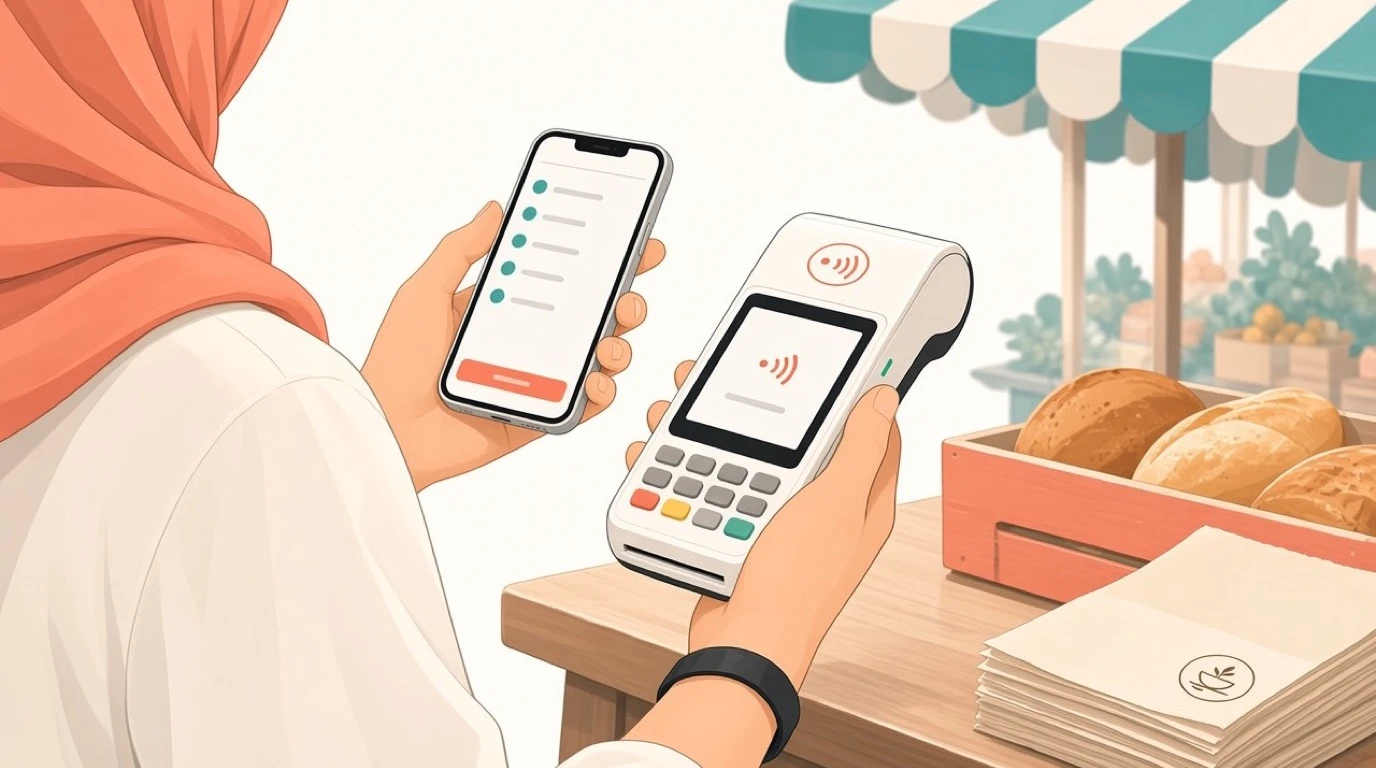
A small venue rarely has redundant connectivity. One consumer broadband line, one router, and a wifi network competing with a microwave. Outages are not hypothetical, and they happen at the worst time because that is when the network is busiest.
Tableview is offline-first, which in practice means orders, receipts, kitchen tickets, opening and closing tabs, and card payments all keep working with no internet, and everything syncs when the connection returns. The food truck configuration is rated for up to 72 hours offline, which tells you the offline path is a designed feature rather than a cache that holds for ten minutes.
That last part is the bit to probe with any vendor. "Offline mode" is claimed by nearly everyone, and it frequently means the screen keeps displaying what it already had, while new orders queue and card payments simply stop. For a single-till operation, card payments stopping is the outage. Get a straight answer on whether cards work offline, and whether queued transactions settle automatically or need somebody to re-key them.
What a small business can safely skip
This is the section that saves you the most money, and almost no buying guide writes it, because the incentive runs the other way.
A kitchen display system, if you have one cook. A kitchen display system earns its place when orders have to be split across stations and somebody needs to own whether a table is complete. With one person on the line and a printer two steps away, a screen is a solution to a problem you do not have yet. Revisit it when you add a second station.
Procurement and purchase order workflows. Approval chains and par-level auto-reorder are built for operations where the person ordering is not the person paying. If you are both of those people, a spreadsheet and a phone are faster.
Advanced inventory, at first. Recipe-level costing is genuinely valuable and genuinely a project. It needs every recipe entered and every delivery logged, and a half-populated inventory system produces numbers that are worse than no numbers because people believe them. Start with basic stock tracking on your twenty highest-volume items.
Reservations, unless you actually take them. Plenty of small venues are walk-in only and buy a reservation module because it came in the tier.
Loyalty, until you have repeat data. A loyalty program designed before you know who your regulars are is a guess with a discount attached.
Multi-location reporting, obviously. But note it is also the thing you will need first if a second site is genuinely on the horizon, which is the one case where paying for the higher tier early is defensible.
If you want the full map of what these modules do before deciding what to defer, restaurant management software lays out the whole stack.
What you should not skip
Shorter list, and each of these is cheap to get right on day one and expensive to retrofit.
Order modifiers that actually work, because "no onions, extra cheese, gluten free bun" on one line item is not an edge case, it is most of your tickets. Split bills, if you have tables, because a group of six asking to split five ways at 9pm is a fixed feature of hospitality. A real offline path, per the section above. Exportable data, so your accountant is not retyping. And role-based access, even with three staff, because the alternative is that everyone can void transactions and you will never work out where the till went light.
Unlimited staff seats matter more at small scale than people expect. Any system that charges per user is going to make you share one login, and shared logins destroy the only audit trail you have.
What $69 a month actually includes
Concrete numbers, because "starts from" pricing is how vendors avoid this question.
| Plan | Price per location | Registers | Built for | What it adds |
|---|---|---|---|---|
| Starter | $69 per month | 2 included, $49 each after | Small cafes, food trucks, single outlets | Floor and table planning, QR ordering, basic inventory, basic reporting, combo and modifier engine, offline mode |
| Pro | $189 per month | Unlimited | Busy restaurants, bars, independent hotels | Kitchen display, advanced inventory and procurement, advanced reporting, multi-location, accounting and payments integration, API access, 24/7 phone support |
| Enterprise | Quoted | Unlimited | Chains, franchises, hotel groups | Quoted per portfolio, enterprise integrations |
The Starter plan is positioned at small cafes, food trucks and single outlets, and it includes floor and table planning, QR ordering, basic inventory, basic reporting, the combo and modifier engine, offline mode, and unlimited staff seats. Support is email and help centre. Two registers come with the plan, so a counter and a back-office screen, or two tills at a bar, cost $69 between them.
There are no setup fees on any plan. Starter and Pro are month to month and cancel any time, which matters for a seasonal operator more than almost anything else on the page. Onboarding help with staff training, menu configuration and data migration is available as a one-time flat rate, and it is optional rather than bundled.
Worth being clear about a limit: multi-location management sits on Pro, not Starter. If you are running two sites from day one, Starter is not your plan even though the price is attractive.
When to pay for Pro instead
Four triggers, and if none of them apply, do not pay $189 for reassurance.
You have a second location, or one arriving within the year. You have a kitchen with more than one station and want the orders split across screens. You need your sales to land in your accounting software without a monthly export, which the accounting integration on Pro does. Or you have more than three registers, at which point the $49-per-register maths on Starter crosses over and unlimited registers on Pro is simply cheaper.
That crossover is worth doing on paper. Starter with five registers is $69 plus three extra registers at $49, so $216 a month, against $189 for Pro with unlimited registers and the whole feature set. The tier that looks more expensive stops being more expensive at four extra screens.
The other honest trigger is support. Starter is email; Pro includes 24/7 phone support. If you are a single operator with no technical help and a Saturday night that cannot go wrong, the value of getting a human on the phone at 8pm is not really a feature comparison.
Three worked examples
A one-person coffee counter. An iPad you already own, a Stripe Terminal reader, no printer because signatures go on screen and receipts go by email. Starter at $69 a month, one register of the two you are entitled to. Software cost in year one: $828, plus the reader. Skip inventory beyond basic stock on beans and milk, skip reservations entirely, skip the kitchen screen. This is the case where the cheapest correct setup and the best setup are the same thing.
A 45-seat neighbourhood bistro. Two tablets on the floor, a laptop in the office, one receipt printer, one kitchen printer. Starter covers two registers and the laptop makes three, so $69 plus $49, or $118 a month. You get table planning and split bills, which is the whole point at this size. Year one: $1,416 of software. Move to Pro when the second kitchen station appears or when the accountant asks for the integration rather than the export.
A food truck working events. One Android tablet, one card reader, a power bank. Starter at $69, and the offline path is the entire reason this works: a field with no signal is the normal operating condition, not the exception. Cancel or pause around the season instead of paying twelve months for six months of trading. Year one might be $414 for six months rather than $828.
Where small buyers get burned
These are the clauses and quirks worth reading for specifically, whoever you end up buying from.
The per-register fee that grows. Covered above, but it is the most common one, so it earns repeating in the section you will skim.
Multi-year terms on a new business. A 36-month software contract signed before you know whether the concept works is a bet with someone else's money. Month to month costs slightly more and is worth it.
Processing lock-in. Some systems require their own payment processing, which means your rate is whatever they decide it is, and you cannot shop it. Being able to bring your own processor is worth real money over five years.
Features that live one tier up. Check whether the specific thing you are buying the system for is on the plan you are pricing. Reporting is the usual culprit: basic reporting on an entry tier sometimes means daily totals and nothing you can act on.
Data you cannot get out. Ask how you export your menu, your sales history and your customer list, and ask in what format. "You can run reports" is not an answer.
If you want the structured version of this conversation, including a demo script you drive instead of the salesperson, how to choose a POS is the full process. And if you are replacing something rather than buying your first system, switching POS systems covers the migration.
How cloud changes the small-business case
A decade ago the software for a venue this size ran on a PC in the back office, and that PC was the single point of failure for the whole business. Backups were somebody's job and therefore nobody's job.
A cloud based POS changes three things that matter specifically when you are small and do not employ anyone technical. Updates arrive without you doing anything. Your data lives somewhere that survives the office flooding. And you can look at today's sales from home, which sounds like a small thing until you have tried to run a venue you are not standing in.
The trade-off is the dependency on connectivity, which is exactly why the offline question above is not optional. Cloud plus a real offline path is the combination you want. Cloud with no offline path is a business that stops when the router does.
Selling online without a tablet farm
The small multi-channel shop from the top of this article has a specific problem, and it is worth naming because the usual fix is terrible.
Orders arrive from the counter, from your own website, and from one or two delivery platforms. The default solution is a tablet per platform, lined up next to the till, each beeping, with somebody retyping orders into the POS. That is where the mistakes come from, and it gets worse exactly when you are busiest.
The alternative is order sources landing in one queue. Tableview includes QR code ordering on Starter, which handles the guest-scans-and-orders case without any per-order commission going to a third party. Delivery aggregator integrations pull the platform orders into the same flow rather than a separate screen.
If direct online ordering is going to be a meaningful share of your revenue, weigh the commission maths seriously. Platform commissions in the 20 to 30 percent range dwarf any software decision you are making on this page.
Getting live without losing a weekend
Setup at this scale is a day of work, not a project, and the part that takes the time is the menu.
Budget most of your effort on entering items, prices and modifiers properly, because a menu entered carelessly generates friction at every single order afterwards. Everything else, the payment connection, the printer, the user accounts, is an afternoon.
Go live on your quietest service. Tuesday lunch, not Friday dinner. Keep the old system or the card terminal reachable for the first week, because the point of a fallback is that you did not expect to need it. Tableview quotes migration from another system in two to three business days when data needs moving, and optional paid onboarding if you would rather not do the menu yourself.
One thing worth doing on day one rather than later: set up your user accounts properly with real roles, even if there are three of you. Retrofitting permissions after everyone has learned to use the owner login is a conversation nobody enjoys.
Growing without replatforming
The reason to care about any of this is that the most expensive POS decision is the second one. Replacing a system in year three costs you the migration, the retraining, the lost reporting history, and a few weeks of your own attention.
So the test for a small-business system is not whether it fits today. It is whether the path from where you are to three times your size involves a plan change or a rebuild. Adding registers, adding a kitchen screen, adding stock management with real recipe costing, adding a second site: all of those should be a setting and an invoice, not a new vendor.
This is also the argument for not buying the cheapest thing with no upgrade path. A system that is perfect for a solo counter and has nothing above it is a system you will replace the moment you hire your third member of staff.
What to ask before you sign
Take this list into the demo. Written down, because vendors answer written questions more precisely than spoken ones.
Is pricing per location, per register or per device, and what does the next register cost? Can I use my own tablets, and does any feature require your hardware? Can I bring my own card processor, and what is the rate if I use yours? Show me the till with the network cable pulled out, including a card payment. What is the contract length and what happens at renewal? Which of the features I just saw are on the plan you quoted me? How do I export my menu, sales history and customer list, and in what format? What does support look like at 8pm on a Saturday?
Eight questions. If a vendor is impatient with them, you have learned something useful for free.
Start with the pricing model, not the feature list. Almost every small business that regrets its POS regrets the commercial terms rather than the software, and the terms are the part nobody demos. If you want to see how Tableview's answers to these questions line up against the systems you are probably also looking at, the Tableview against Square comparison works through them one at a time.
Read next: coffee shop POS for the counter-service version of this decision, food truck POS if you are mobile or seasonal, and restaurant startup costs for where the till sits in an opening budget.