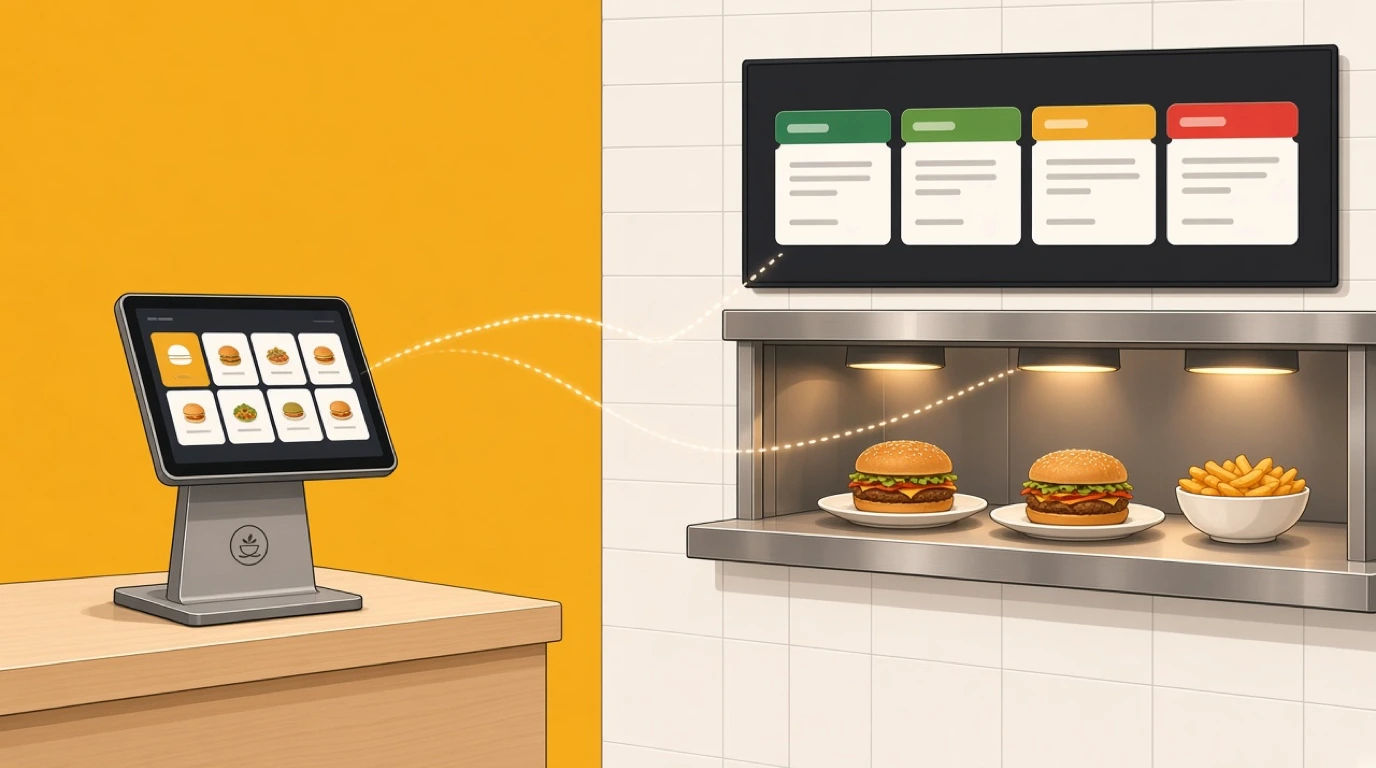
Most kitchen screen problems aren't screen problems. The tablet on the wall works fine. What fails is the conversation between the till and the kitchen: a modifier that arrives as a separate line, a void that never reaches the grill, a delivery order that prints in the office instead of appearing on the pass. Choosing a POS with kitchen display is really choosing how well those two systems talk, and whether they're one system at all. The kitchen display system is only as good as the orders it receives.
That question has become harder as orders come from more places. A table order from a server, a QR order from the terrace, a pickup order from your website and three delivery platforms all have to land on the same screens, in the same format, in the right sequence. A takeaway POS system that pulls those channels into one queue solves half of it. The other half is what happens after the order leaves the till.
Our view, stated up front: for most independent restaurants, a KDS built into the POS beats a better-looking screen bolted on through an integration. Not because add-ons are bad, but because every seam between two systems is a place where a ticket can change, stall or go missing, and you'll find those seams on a Friday night, not in the demo.
What is a POS with kitchen display?
A POS with kitchen display is a point of sale that sends each order straight to screens in the kitchen, split by station, without printing or re-keying.
- Orders routed by station
- Modifiers and allergy notes
- Courses held and fired
- Ticket timers per station
- Ready status back to the till
It connects the people taking orders with the people cooking them, so an item rung in at the counter or table reaches the right cook within a second or two.
A POS with kitchen display usually comes in one of three forms:
- A KDS built into the restaurant POS itself
- A paid KDS module from the same POS vendor
- A separate KDS app connected through an integration
In short: orders go from the till to the right cook on a screen, with nothing printed, copied or lost on the way.
Built-in vs add-on vs third-party KDS
Vendors use "integrated" for all three setups, so the word on its own tells you very little. What matters is who owns the order data and how many times it gets translated on its way to the kitchen.
Built-in KDS
The kitchen screens run on the same platform as the POS, with the same menu, the same modifiers and the same order record. When a server edits an order, the kitchen sees the edit on the original ticket, because there's only one ticket. Menu changes are made once.
Vendor add-on KDS
The POS company sells its kitchen display as a separate app or subscription. Toast, Square and Clover all sell kitchen display apps for their own POS. The data usually lives in one place, so it behaves much like a built-in system, but you pay per screen and the feature depth can lag behind the main product.
Third-party KDS
A specialist kitchen display company connects to your POS through an integration. These apps can be strong on kitchen features, and they let you keep a POS you're happy with. The trade-off is translation: the order is rebuilt in a second system, and anything the integration doesn't map, from a nested modifier to a course hold, gets lost or arrives in a different form.
Key distinction:
- Built-in and vendor add-on systems share one order record. A third-party KDS works from a copy.
- The copy is fine until something changes after the order is sent, and in a busy kitchen something always does.
If you're still deciding whether to move off paper at all, our comparison of KDS and kitchen printers covers that choice first.
Ways to connect the kitchen to the till
Most kitchens sit somewhere on this list, and many run two setups at once, with screens on the hot line and a printer at the bar or pastry section.
| Setup | How it works | Best for | Strengths | Limits |
|---|---|---|---|---|
| Printer only | POS prints a ticket per station | Small menus, one or two cooks | Cheap, familiar, survives anything | No timers, edits mean reprints |
| Printer and screens | Screens on the line, printer as backup | Kitchens moving off paper | Low risk during the switch | Two places to look |
| Vendor add-on KDS | POS vendor's own kitchen app | Venues happy with their POS | Shared data, one support line | Extra fee per screen |
| Third-party KDS | Specialist app linked by integration | Complex kitchens on a fixed POS | Deep kitchen features | Mapping gaps, two vendors |
| Built-in KDS | Kitchen screens inside the POS platform | Venues choosing a new system | One menu, one ticket, one report | Tied to that POS |
The printer-only row deserves respect. A café with eight hot items and one cook on the line may never need a screen, and a printer that has worked for ten years isn't a problem to solve.
How a POS with kitchen display works
The steps are the same whichever setup you run. The difference is how many of them happen inside one system and how many depend on an integration passing the data across.
1. Each menu item knows its station
When the menu is built, every item is assigned to a station: steak to the grill, fries to the fryer, salads to cold prep, desserts to pastry. Some items go to two stations, like a burger whose patty goes to the grill while the bun and garnish go to assembly. This setup is the foundation, and most routing problems trace back to an item assigned to the wrong place.
2. The order is rung in, from anywhere
A server enters it at the table, a cashier at the counter, a guest on a QR menu, or it arrives from a delivery platform or your website. With a built-in KDS all of these are the same kind of order. With a third-party KDS, each channel has to pass through the integration, and delivery orders are the ones most often left out.
3. Routing splits the ticket
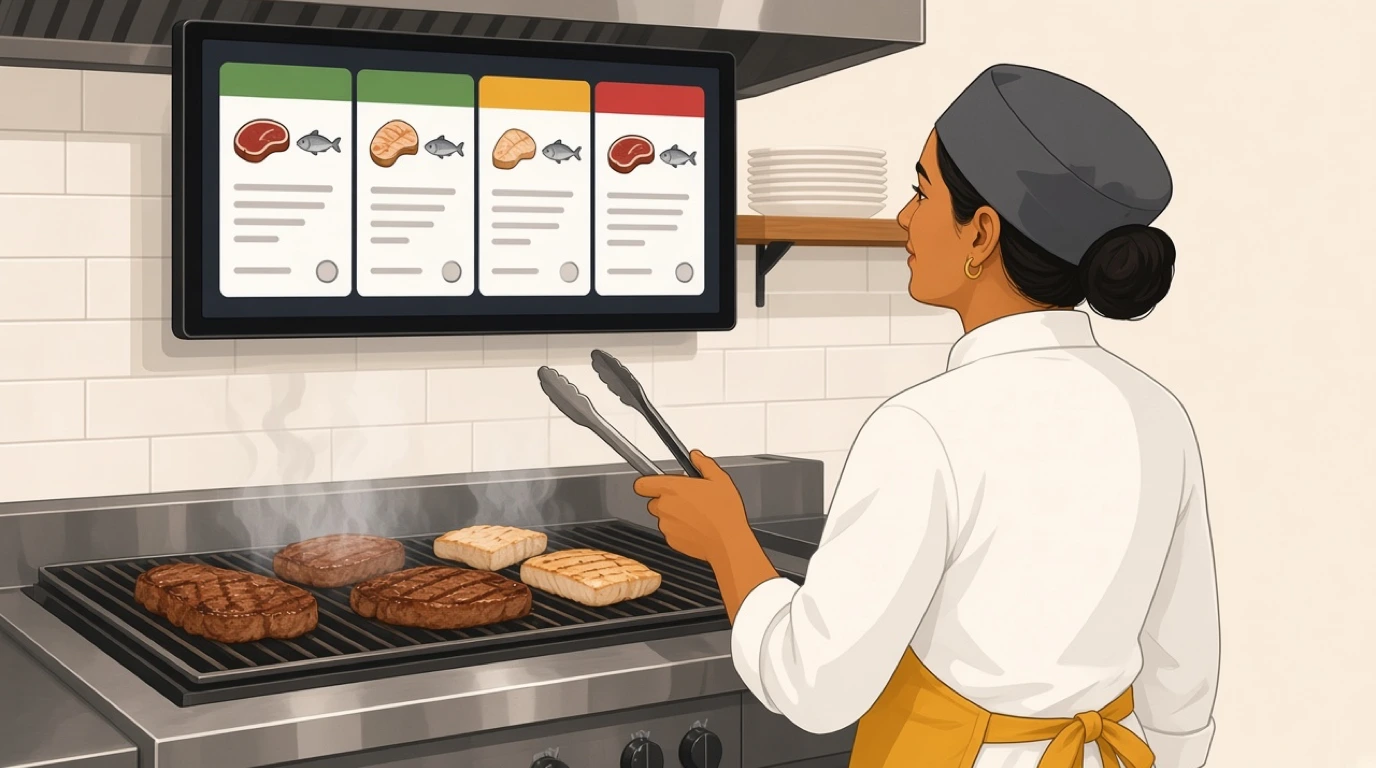
The system breaks the order into station tickets. The grill sees two steaks and their temperatures, the fryer sees the sides, cold prep sees the starters. Every station ticket carries the modifiers and allergy notes for its own items, and the expo screen sees the whole order.
4. Courses wait until they're fired
For table service, mains are held until the server fires them, usually when starters are cleared. The kitchen sees the held course greyed out or queued, so the grill can plan, and the timer starts only when the course is fired.
5. Cooks bump, expo assembles
When a station finishes its part, the cook bumps it with a tap. Expo sees which parts of each order are ready and calls the rest. Timers turn amber and then red as items pass their target time.
6. Status flows back to the POS
Once the order is complete, the till knows. Servers see that table 12 is ready, the pickup screen updates, and delivery platforms can be told the order is ready. The ticket times are stored against each station and hour, so next week's rota can be based on real numbers.
Here's that sequence on a Friday at a 70-seat neighbourhood grill with three stations (grill, fryer, cold) and an expo. At 7:20 pm there are 31 open tickets. A table of six orders, with a nut allergy on one starter; the allergy flag appears in red on the cold station ticket and on expo. Two minutes later, a Deliveroo order for two burgers and fries lands on the grill and fryer screens with a delivery tag and a pickup time, in the same queue as the dining room. The table of six's mains are held. At 7:31 the server fires them, and the grill screen shows four steaks and two fish with a 12-minute target.
At 7:34 the server changes one steak from medium to medium rare. On a built-in KDS the original ticket updates on the grill screen and the change is highlighted. On a loosely integrated setup, the same change often arrives as a second ticket or a reprint, and now the grill has two tickets for one steak. The grill is running at 14 minutes against its 12-minute target, its tickets have turned red, and expo pulls a cook from the fryer for five minutes. On Monday, the manager sees in the ticket time report that the grill went over target between 7:30 and 8:15 on Friday and Saturday, and adds a cook to that slot.
What breaks when the POS and KDS are separate
Third-party kitchen displays can work very well. But when they don't, the trouble almost always shows up at the same handful of points. If you're keeping your POS and adding a separate KDS, test each of these before you sign.
Nested modifiers. "Burger, no onion, add bacon, sauce on the side, gluten-free bun" is one item with four modifiers. Some integrations flatten it into five lines, or drop the modifiers they don't recognise. Ask to ring in your most complicated item and see exactly what the grill sees.
Edits and voids after sending. A changed temperature, a removed side, a cancelled dish. If the integration can only send new orders and not changes, the kitchen gets a second ticket, or nothing. Cooks then work from what they remember, which is how two steaks get cooked for one guest.
Course holds. Holding mains until the server fires them depends on both systems understanding courses. If the KDS doesn't, everything fires at once, and the kitchen has to pace tables by eye.
Delivery and online orders. Orders from delivery platforms often reach the POS through a separate tablet or connector. If that connector doesn't send them to the KDS, they print somewhere else or get keyed in by hand. The order channels involved in third-party delivery are where this goes wrong most often.
Menu changes made twice. A new dish, a changed station, a removed item: if the KDS keeps its own copy of the menu, someone has to update both, and the day they forget, a new special prints at no station at all.
Allergy flags. An allergy note entered as free text in the POS may arrive on the KDS as plain text in the middle of the ticket, not as a highlighted flag. That's not a cosmetic problem. How allergy information should travel through the kitchen is covered in our article on allergen management.
Two support lines. When a ticket goes missing, the POS company says the order was sent and the KDS company says it never arrived. Someone has to prove which side failed, and it's usually you.
The network. If the KDS needs the internet to receive orders from a cloud POS, an outage stops the kitchen even when the tills keep working. Ask what happens to orders taken offline, and when they reach the screens. The wider question of running through an outage is covered in our article on the offline POS system.
What to look for in a POS with kitchen display
Every demo shows a tidy screen with three tickets. These are the questions that tell you how it'll behave with forty.
1. Routing rules per item, not just per category
Most items follow their category, but some don't: the burger split between grill and assembly, the dessert plated by the cold station on quiet nights. Ask whether one item can go to two stations, and whether routing can change by time of day.
2. Modifiers and allergies shown exactly as entered
Every modifier should appear under its item, in the order the server entered it, and allergies should stand out in colour, not hide in a note. Ask to ring in your hardest item and read the ticket from three metres away.
3. Edits that update the original ticket
A change after sending should modify the ticket on screen and highlight what changed, and a void should remove it. Ask the demonstrator to change a temperature and void a side after the order is sent, then look at the grill screen.
4. Course hold and fire
For table service, mains should wait until fired, visible but not yet timed. Ask how a server fires a course, and what the kitchen sees before and after.
5. Every channel on the same screens
Dining room, counter, QR, website and delivery platforms should all appear in one queue, tagged by channel, with pickup times on delivery orders. Ask to see a delivery order arrive while dine-in tickets are open.
6. Timers and targets per station
The fryer and the grill shouldn't share a target time. Look for colour changes at thresholds you set per station, and a view of how many tickets each station is carrying right now.
7. An expo view and ready status back to the till
Expo needs the whole order, with each station's progress. When it's done, servers and the pickup screen should know without anyone walking over. Ask what the server sees when table 12 is ready.
8. Behaviour without the internet
Orders should keep flowing from tills to screens over the local network if the internet drops, and sync when it returns. Ask them to unplug the router during the demo.
9. Hardware you can choose
Some systems need the vendor's own screens; others run on standard tablets in a browser. Standard hardware is cheaper to replace when a screen dies at 8 pm. What holds up in a hot kitchen is covered in our article on the restaurant POS tablet.
10. Ticket time reports you'll use
Average ticket time by station and by hour, and which items run longest. Ask which report a kitchen manager at an existing customer opens on a Monday morning.
How much does a POS with kitchen display cost?
The price depends on which of the three setups you choose, and on the screens.
Built-in KDS. Usually included in a plan tier rather than charged per screen. You pay for the POS plan that includes it, plus the hardware.
Vendor add-on KDS. Typically a monthly fee per kitchen screen on top of the POS subscription. Four screens means four fees, which adds up in a kitchen with several stations and an expo.
Third-party KDS. Its own subscription, often per screen, and sometimes an integration fee charged by the POS company or the KDS company. Budget time as well as money: someone has to set up and keep two menus in step.
Screens and mounting. Commercial kitchen screens, tablets with sealed cases, wall mounts and cabling. The full breakdown, with worked examples by kitchen size, is in our article on kitchen screen system cost.
In Tableview, the KDS is part of the Pro and Enterprise plans, with no charge per screen; the details are on our plans and pricing page.
How to choose a POS with kitchen display for your restaurant
The right setup depends on your kitchen's stations, your order channels and how much changes after an order is sent.
Full-service restaurants
Course holds, edits after sending and allergy flags matter most, because tables order in stages and change their minds. A built-in KDS keeps those changes on the original ticket. Look for course firing that lives in the same system as the full-service restaurant POS.
Casual dining and bistros
Shorter menus, faster turns and a lot of dishes going out at once. Two or three stations and an expo screen usually cover it. Timers per station help most here, because one slow station holds every table. That's typical for casual dining and bistros.
Bars with food
A small kitchen and a busy bar. Often one kitchen screen, with drinks printing or showing at the bar. Make sure food from bar tabs reaches the kitchen without the bartender walking a ticket over. The venue side is on our bar POS system page.
Takeaway and delivery
Order channels are the whole game. Every platform and your own website should land in one queue with pickup times, and the system should slow quoted times when the kitchen is overloaded. Test a delivery order arriving in the middle of a rush.
Food trucks and cloud kitchens
A truck needs one screen that keeps working without signal. A cloud kitchen running several brands needs each order tagged by brand on a shared pass, so the right packaging goes in the right bag. Both are covered on our page for cloud kitchens.
Hotels and resorts
Several outlets, a room-service kitchen and banqueting, each with its own routing. Room-service tickets need delivery times, and outlets need to share kitchens without seeing each other's orders. That's daily work in hotel F&B.
Moving to a connected kitchen without losing a service
The switch from paper, or from a separate KDS, is where most kitchens lose faith in screens. Most of that is avoidable.
Map the stations on paper first. List every item, which station makes it and which items go to two. Have the head chef sign it off. An hour here saves a week of tickets landing in the wrong place.
Run the printer alongside for a week. Keep printing at each station while the screens go live. Cooks can check the screen against the paper, and nobody panics if a screen freezes during service.
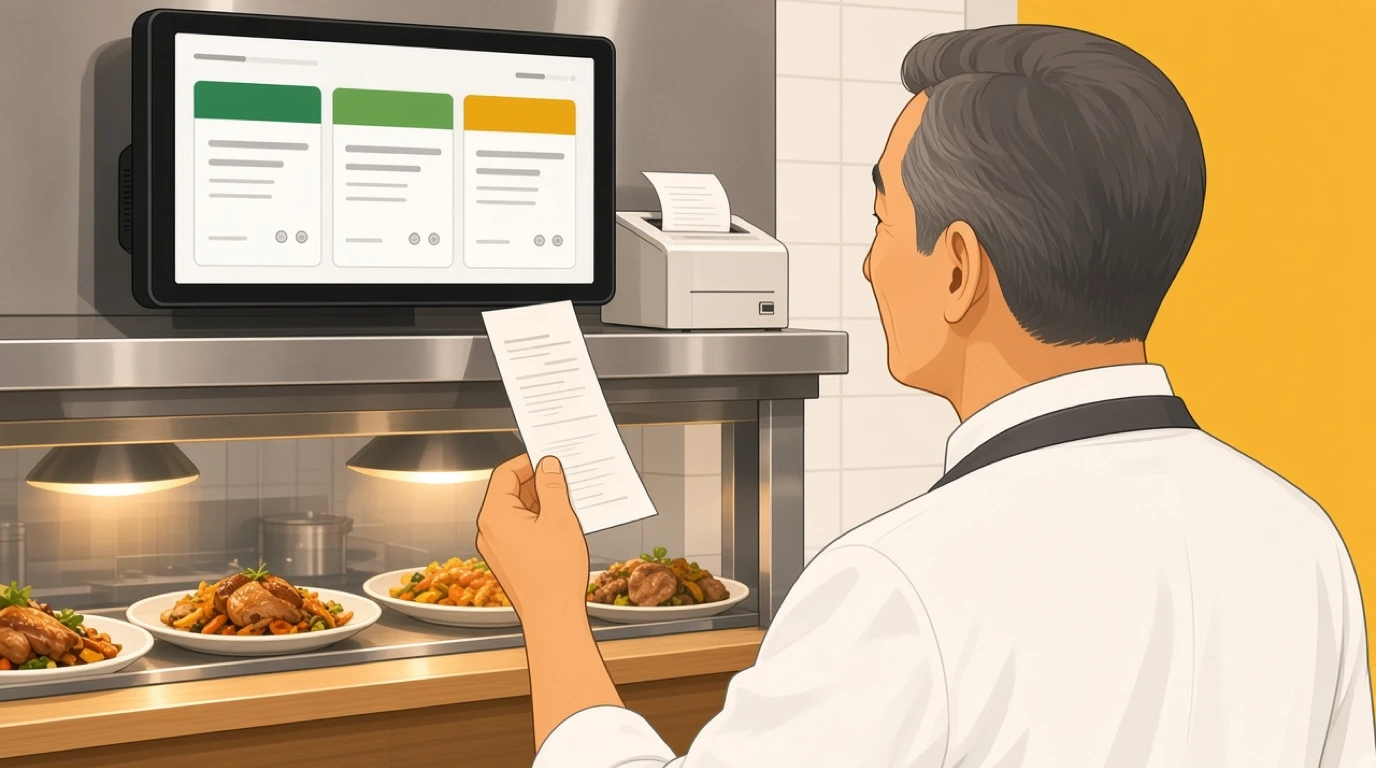
Set targets from two weeks of real times. Don't guess target times on day one. Let the system record two weeks, then set each station's target a little under its normal busy-night time.
Train on a quiet shift. A Tuesday lunch, not a Saturday dinner. Each cook bumps their own tickets, the expo learns recall, servers learn to fire courses.
Retire the printer, but keep one. Once the screens have survived two busy weekends, switch off station printing. Keep one printer configured as a backup for the day a screen fails.
If the switch is part of a move to a new POS altogether, our guide to switching POS systems covers the data, the hardware and the timing.
Where Tableview fits, and where it does not
Tableview's kitchen display is built into the same platform as the POS, so a dish ordered at a table, on a QR menu or from a delivery platform becomes one ticket, routed to the stations you set up: grill, fryer, cold prep, pastry, as many as the kitchen needs. Course firing holds mains until the server sends them. Tickets change colour from green to yellow to red against timers you set for each station, allergen and dietary flags show on every ticket, and rush or VIP orders can be bumped up the queue.
Cooks bump items with one tap, and the expo view shows each order's progress across stations. Orders from QR code ordering, your website and platforms such as Uber Eats, Deliveroo and Just Eat land in the same queue, and the system can extend quoted times when station load gets too high. Multi-brand kitchens see each order tagged by brand. Reports show average ticket time by station and hour. It runs in a browser on iPads, Android tablets or terminals you already own, works offline, and stations that prefer paper can keep Star, Epson or Sunmi printers. The KDS is included in the Pro and Enterprise plans.
Where something else is the better choice:
- If you're happy with your current POS and only want screens in the kitchen, a KDS that integrates with it is less disruptive than replacing the till.
- If you only need the Starter plan, there's no KDS in it; the kitchen display starts with Pro.
- A kitchen built around physical bump bars or drive-thru timing systems should check hardware support first; in Tableview, a bump is a tap on the screen.
- A chain with hundreds of quick-service sites is better served by an enterprise system built for that scale.
Key takeaways
- A POS with kitchen display sends each order from the till straight to station screens, with modifiers, allergies, courses and timers carried across intact.
- Built-in and vendor add-on systems share one order record. A third-party KDS works from a copy made by an integration.
- Most failures happen after an order is sent: edits, voids, course holds, delivery orders and menu changes.
- Test your hardest item, a change after sending and a delivery order during the demo.
- Built-in KDS is usually priced by plan; add-ons and third-party apps usually charge per screen.
- Run the printer alongside for a week and set station targets from real ticket times.
Read next: kitchen display basics for screens, mounting and tickets, order management for handling every channel in one place, and online ordering through the POS for your own website orders.